25. June 2026
Transparent tracking of construction progress in the BIM model with mydocma RP
In our construction documentation system, mydocma RP, activities can now be documented in a traceable manner as tasks linked to the BIM model and the schedule.

The BIM viewer is located between the process tree and the activities. It can be shown or hidden using the BIM icon.
Model-based progress documentation combines scheduling, execution and documentation in a seamless process – without any change of medium
How it works:
- Prerequisite: The BIM model is stored in mydocma’s central plan and model management system.
- Integration: The BIM model and the schedule are linked together in the Asta Powerproject scheduling software.
- Transfer: The BIM-schedule link is transferred to mydocma RP via an add-in.
- Documentation: In mydocma RP, tasks relating to scheduled activities can therefore be recorded directly within the BIM model.
- Benefit: Construction progress is clearly illustrated..
Facts about the BIM Viewer
- BIM model view is currently available on desktop
- Prerequisite: BIM authorisation for the BIM Viewer and BIM actions
- Selecting an item in the task tree highlights the corresponding component in the BIM model
- Selecting an item in the BIM Viewer highlights the corresponding task in the task tree
- Tasks are automatically filtered to show only those associated with the selected task
- The ‘Assignment’ filter shows only those tasks in the task tree that are linked to the open BIM model
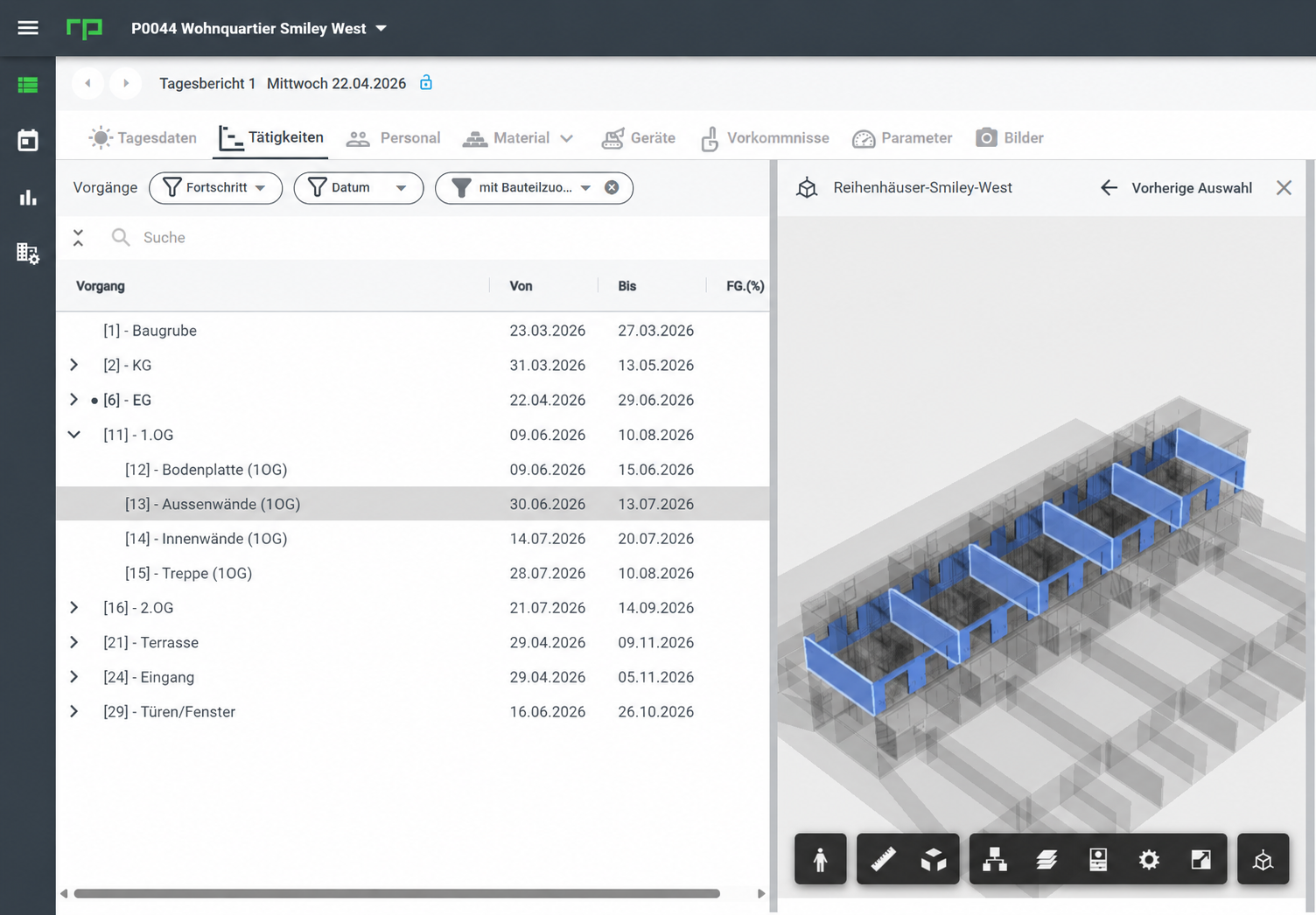
BIM Viewer: When an operation is selected in the operation tree, the corresponding component is highlighted in the BIM model.
BIM viewer tools
The BIM Viewer offers a range of Autodesk viewer functions for examining the model in greater detail.
Navigation tools
- First-person mode: Explore the model from a first-person perspective
- Orbit: Rotate the camera around a fixed point within the model
Measurement and viewing tools
- Measurement: Measure distances, angles and areas in the model
- Section Analysis: Cut the model along the X, Y or Z axis
- Set Pivot Point: Set the pivot point for the Orbit camera
Information and recruitment tools
- Model Browser: Search for, select or hide components and layers
- Properties: Display BIM information for the selected object
- Mark-ups: Create comments and graphical annotations in the model
- Settings: Customise display, performance and navigation
- Full screen: Expand the viewer to full screen
An overview of the key benefits
- Up-to-date status
The documented progress can be viewed in the model at any time, updated on a project-by-project basis.
- Deviations
Deviations from the plan and delays become apparent at an early stage.
- Transparency
The progress of the construction work is presented to all those involved in a clear, consistent and comprehensible manner.
- Coordination
Project participants have access to a shared, consistent information base.
- Practical benefits
Recording data directly within the model simplifies day-to-day documentation on site.
- Security
Documented statuses and progress remain reliably available for future verification.