30. June 2026
NEW: mydocma JF report management – Direct email delivery of reports
New version of the mydocma JF module featuring direct email dispatch, system variables for standardised cover letters and many other convenient features.
The regular meeting minutes can now be sent directly to the meeting’s distribution list from the minutes editor or the PDF preview in the JF module, without any detours.
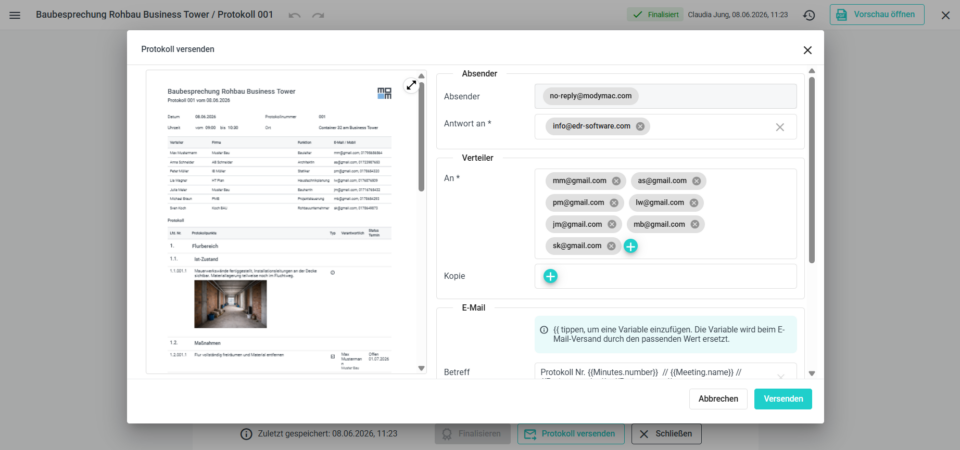
Postal service dialogue box with preview
Before sending, a preview of the minutes is displayed. The recipients from the meeting are automatically included and can be amended if necessary – as can the reply-to address, subject line, free text and any additional attachments.
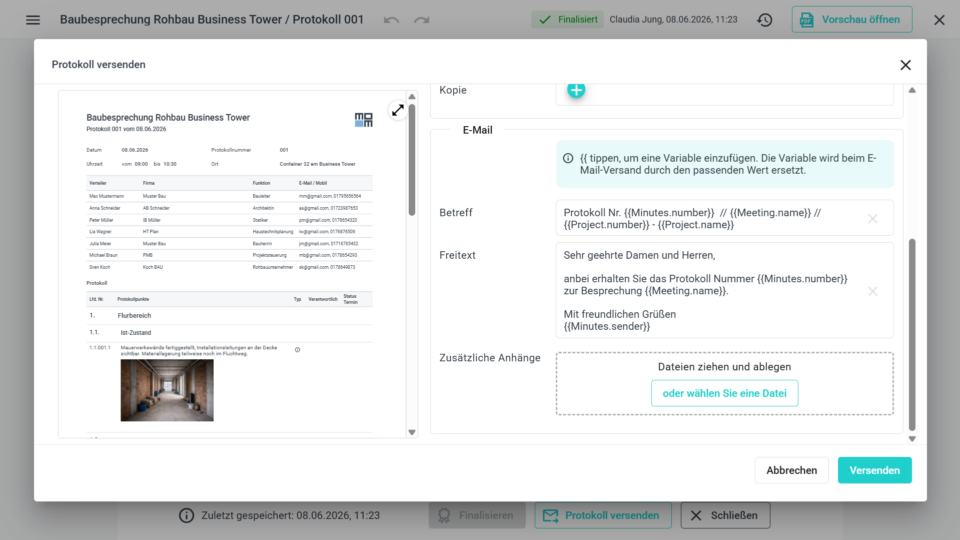
Automatic content generated by system variables
System variables are available for the subject line and free text, which are automatically replaced with the relevant values when the email is sent. Typing two curly brackets opens a drop-down list from which you can select predefined system variables such as project name, project number, meeting name, date/time, creator, sender or status. This speeds up the sending of emails whilst ensuring standardised communication with the correct details.
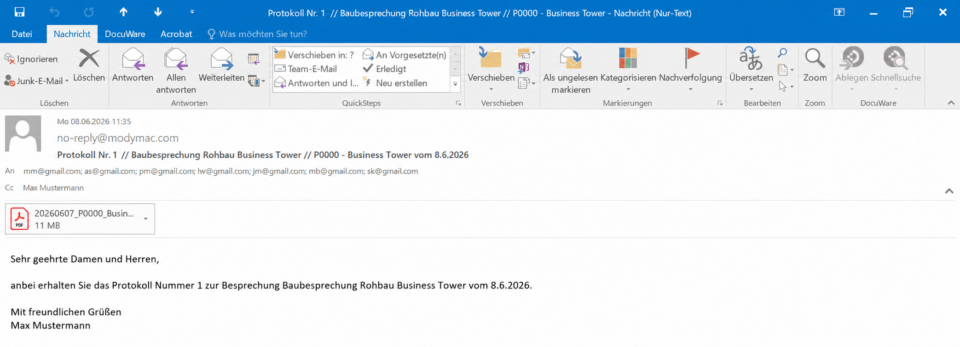
Direct distribution of minutes
Click on ‘SEND MINUTES’ and the document is sent directly to the recipients’ email inboxes without any intermediate steps. Once the document has been sent, a confirmation message appears in the JF module; if the email fails to send, a corresponding message is displayed.
Advanced PDF preview
When you click ‘CREATE PREVIEW’, a PDF file of the relevant minutes is automatically generated and saved, which is then used for sending by email. PDF previews of drafts have a watermark on every page labelled ‘ENTWURF’ or ‘DRAFT’ – depending on the language setting used for the PDF. The file contains the date stamp of the last modification and the language setting used. As long as no changes have been made and the language setting remains the same, the saved preview can be opened again.
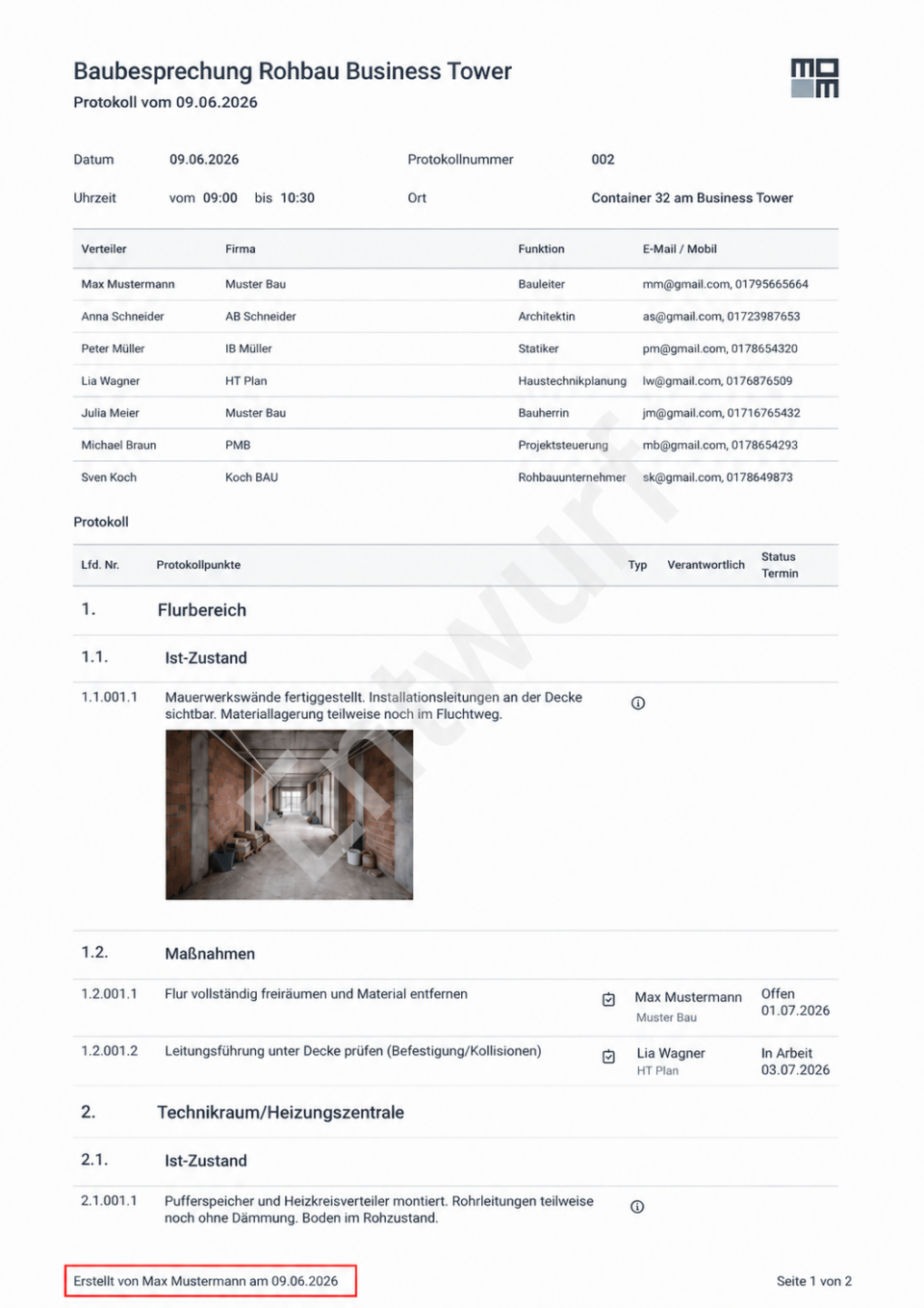
New changes to the Protocol Editor
Keyboard shortcuts for editing log entries
- ENTER: For multi-line elements such as agenda items or paragraphs, a new line is inserted within the text.
- SHIFT + ENTER: Saves the current line and creates a new element at the same level.
- CTRL + ENTER: Saves the current line and creates a new child element.
Toolbar for logs
- The toolbar adapts to the current report status
- DRAFT: The actions FINALISE, SEND DRAFT and CLOSE are available
- Prerequisite for finalisation: no previous report with the status DRAFT
- If finalisation is not possible: the FINALISE action is disabled and a corresponding message is displayed
- Finalised minutes: the FINALISE button is disabled; SEND MINUTES and CLOSE remain available